> ## Documentation Index
> Fetch the complete documentation index at: https://superwhisper.com/docs/llms.txt
> Use this file to discover all available pages before exploring further.
# Microphone, system audio, and Muffle problems
> Fix the wrong microphone, empty system audio recordings, and Muffle problems with audio apps like FineTune, SoundSource, and eqMac.
## Superwhisper uses the wrong microphone
The active input device shows in the **top-right of every settings pane**. Click it to switch:
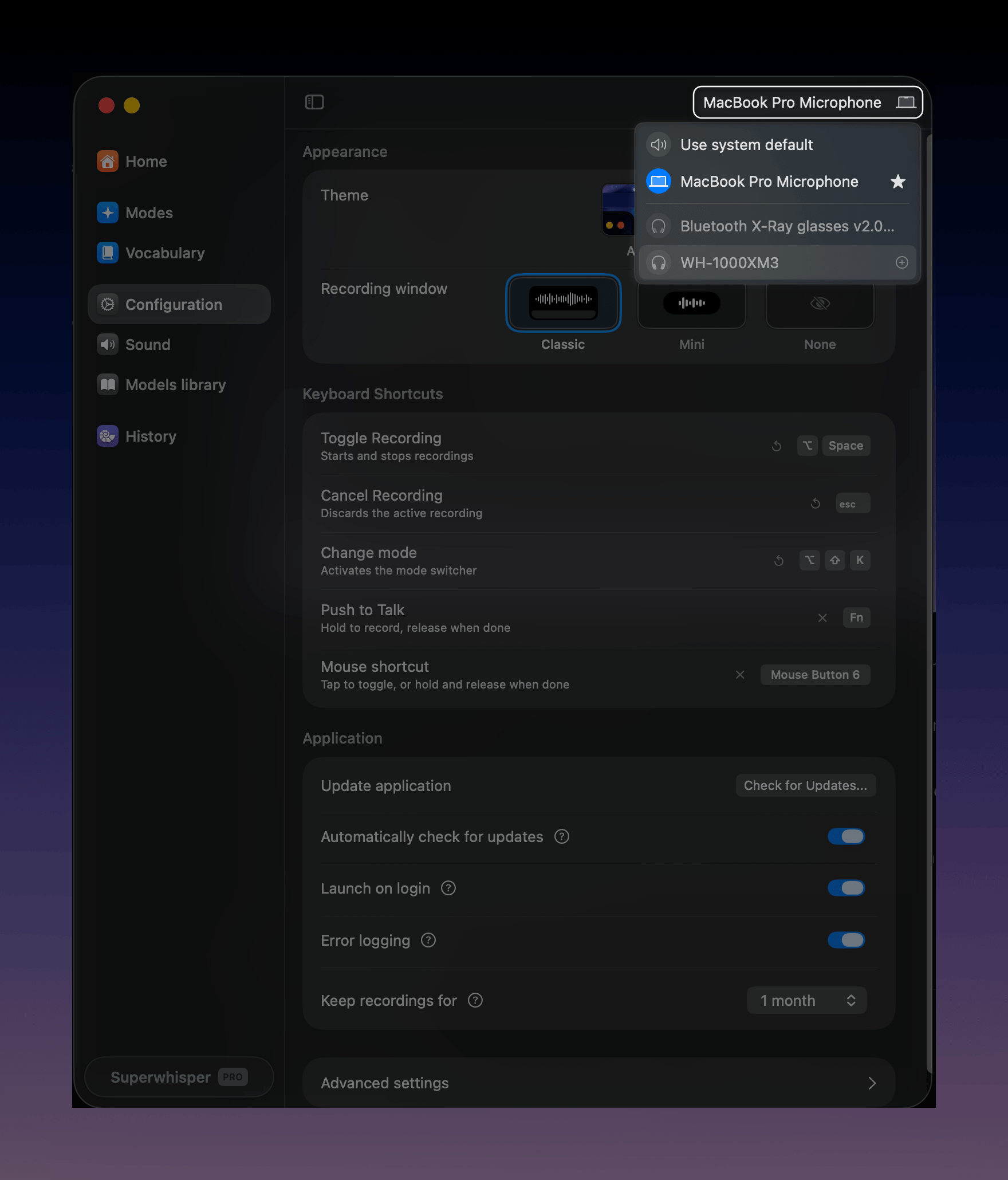 * **Use system default** follows whatever macOS or Windows has selected, which changes when a Bluetooth headset connects. If Superwhisper switches microphones on its own, the system default changed underneath it.
* **Star a microphone** to mark it as a priority device. Superwhisper prefers starred devices over the others.
* **Exclude a device** with its exclude button in the same list. Superwhisper then stops offering that device, for example a virtual microphone you never use.
## AirPods and Bluetooth headsets sound worse
When a Bluetooth headset's microphone is active, audio quality often drops. This is a Bluetooth limitation, not a Superwhisper setting, and it can reduce transcription accuracy. Try selecting your **built-in microphone** as the input and keep listening through the headset.
## System audio recordings come out empty or silent
System audio (recording what your computer plays, for meetings) is a per-mode feature:
1. **Grant the permission**: system audio needs **Screen & System Audio Recording** permission. Open **System Settings → Privacy & Security → Screen & System Audio Recording** (called **Screen Recording** on macOS 14) and enable Superwhisper. Quit and reopen the app if macOS asks
2. **Enable it in the mode**: edit the mode and turn on **Record from system audio**. It records applications on your main display along with your microphone. See [audio options](/docs/modes/modes#advanced-settings)
3. **A still waveform is normal**: the waveform doesn't move during system-audio capture. Check [History](/docs/get-started/history) to confirm the audio recorded
4. **Check your org policy**: on an Enterprise license, your organization can disable system audio recording org-wide. If the option is missing, ask your admin
5. **Rule out your audio device**: if a meeting recorded silent, retry with built-in speakers or wired headphones. If that works, the device is the cause. If it still fails, email [support@superwhisper.com](mailto:support@superwhisper.com) with the device model and your macOS version
## Notifications and other apps in the recording
System audio capture records everything the computer plays, including notification sounds. Mute notifications during meetings you record, or record microphone-only modes when you don't need the other side.
* **Use system default** follows whatever macOS or Windows has selected, which changes when a Bluetooth headset connects. If Superwhisper switches microphones on its own, the system default changed underneath it.
* **Star a microphone** to mark it as a priority device. Superwhisper prefers starred devices over the others.
* **Exclude a device** with its exclude button in the same list. Superwhisper then stops offering that device, for example a virtual microphone you never use.
## AirPods and Bluetooth headsets sound worse
When a Bluetooth headset's microphone is active, audio quality often drops. This is a Bluetooth limitation, not a Superwhisper setting, and it can reduce transcription accuracy. Try selecting your **built-in microphone** as the input and keep listening through the headset.
## System audio recordings come out empty or silent
System audio (recording what your computer plays, for meetings) is a per-mode feature:
1. **Grant the permission**: system audio needs **Screen & System Audio Recording** permission. Open **System Settings → Privacy & Security → Screen & System Audio Recording** (called **Screen Recording** on macOS 14) and enable Superwhisper. Quit and reopen the app if macOS asks
2. **Enable it in the mode**: edit the mode and turn on **Record from system audio**. It records applications on your main display along with your microphone. See [audio options](/docs/modes/modes#advanced-settings)
3. **A still waveform is normal**: the waveform doesn't move during system-audio capture. Check [History](/docs/get-started/history) to confirm the audio recorded
4. **Check your org policy**: on an Enterprise license, your organization can disable system audio recording org-wide. If the option is missing, ask your admin
5. **Rule out your audio device**: if a meeting recorded silent, retry with built-in speakers or wired headphones. If that works, the device is the cause. If it still fails, email [support@superwhisper.com](mailto:support@superwhisper.com) with the device model and your macOS version
## Notifications and other apps in the recording
System audio capture records everything the computer plays, including notification sounds. Mute notifications during meetings you record, or record microphone-only modes when you don't need the other side.
Muffle is silent, doubled, or doesn't muffle
Some apps send all of your Mac's audio through themselves, as Muffle does. When both run, your audio can go silent or play twice. Superwhisper finds these apps and uses **Lower** when Muffle can't run.
Muffle also needs macOS 14.2 or later and the **System Audio Recording** permission. See [the permission step above](#system-audio-recordings-come-out-empty-or-silent).
### Set up FineTune or SoundSource
Open **Settings → Sound** with **Muffle** selected. A box names the app. Click **Set up**. Superwhisper restarts the app and tells it to leave Superwhisper alone. This takes 5 to 10 seconds.
The box shows only while the current mode uses Muffle and the app is running.
If the box says **Couldn't set it up automatically**, do it by hand:
* **FineTune**: keep **Settings → Sound** open. Click FineTune in the menu bar, click the pencil, then click the eye next to Superwhisper
* **SoundSource**: click SoundSource in the menu bar, then the gear, then **Settings → Audio**. Under **Excluded Applications**, click **Add Exclusion** and choose Superwhisper
After setup, Superwhisper plays a short, quiet tone to confirm the app no longer reroutes it. The check needs the other app to be playing audio. Until it passes, Superwhisper uses **Lower**. If the box says to restart both apps, quit and reopen FineTune or SoundSource and Superwhisper.
Apps that don't work with Muffle
Background Music, eqMac, Boom 3D, and Sound Control. While one of them runs, Superwhisper uses **Lower**. Quit the app to use Muffle.
Apps we haven't tested yet
Vorssaint, Fader, MacMix, Audio Hijack, and Loopback. Muffle still runs alongside them. If your audio cuts out, switch to **Lower**.
### Audio stays silent after dictating
In **Settings → Sound**, switch **Sound while recording** to another option and back. If it's still silent, quit and reopen Superwhisper.
This documentation is built and hosted on [Mintlify](https://mintlify.com), a developer documentation platform.