> ## Documentation Index
> Fetch the complete documentation index at: https://superwhisper.com/docs/llms.txt
> Use this file to discover all available pages before exploring further.
# "No voice found" or stuck processing
> Fix dictations that show "No voice found" or never finish processing. Check your microphone, input level, and connection.
**"No voice found"** means the recording had no detectable speech in it. History shows **No voice found in recording** for these dictations. The problem is almost always the audio input, not the model.
## Fix "No voice found"
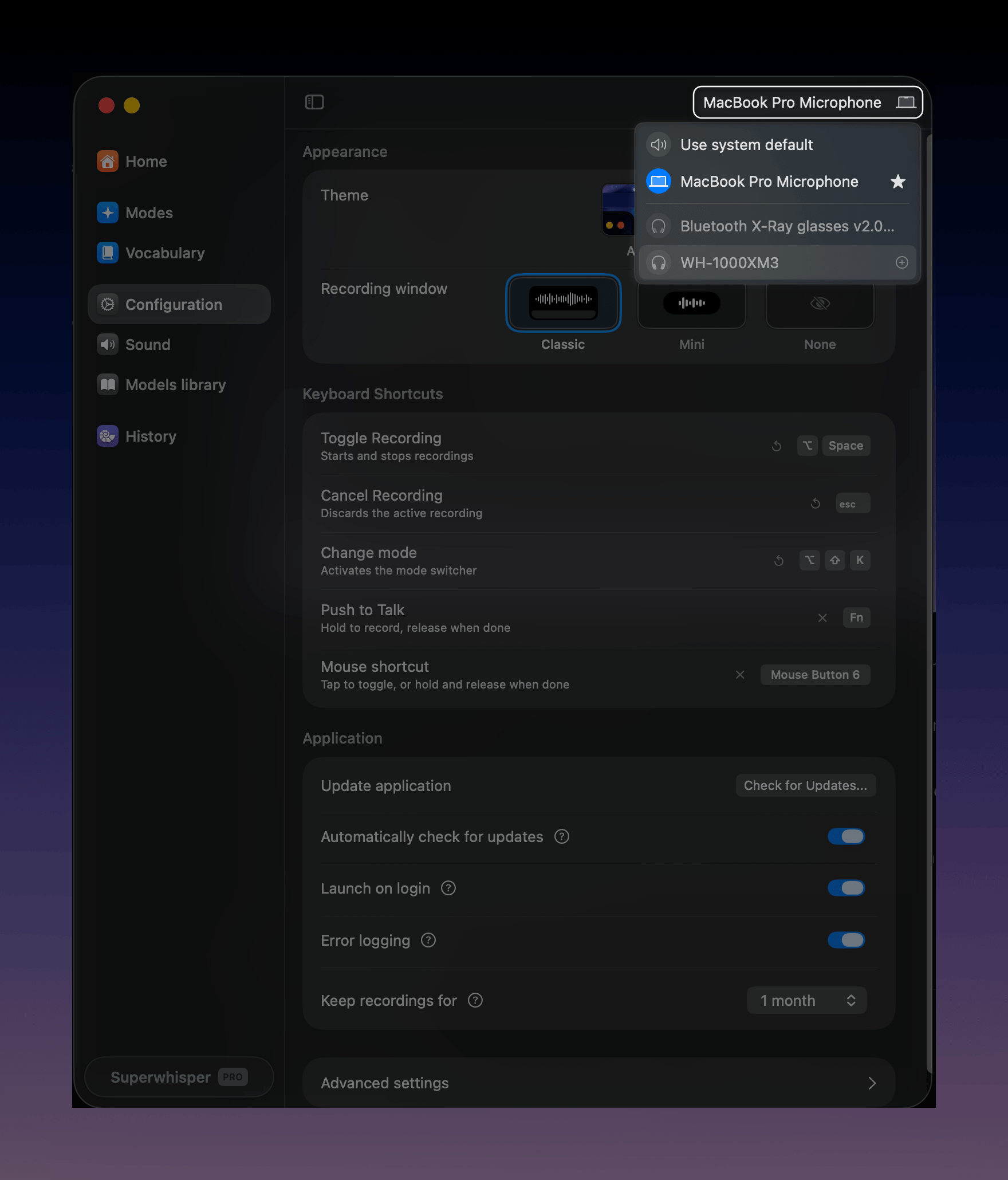
The active input device shows in the **top-right of every settings pane**. If Superwhisper is listening to the wrong device, such as a disconnected headset or a muted external microphone, switch it there or set **Use system default**.
 On macOS, open **System Settings → Privacy & Security → Microphone** and make sure Superwhisper is enabled. On Windows, check **Settings → Privacy & security → Microphone**.
Start a recording and talk. If the waveform doesn't move, audio isn't reaching the app. Try the built-in microphone to rule out a Bluetooth device problem.
One exception: when a mode records **system audio**, the waveform stays still by design. Check [History](/docs/get-started/history) to confirm audio was captured.
Open the dictation in **History** and play the audio. If the recording is silent, the input device was wrong or muted. If you can hear yourself clearly but still got the error, [report the recording from History](/docs/get-started/history#report-an-issue). It sends the audio to the team with your report.
Check that **Automatically increase microphone volume** is on in **Settings → Sound**. It sets the microphone input volume to maximum when a recording starts, so quiet input is less likely to read as silence. It works only when Superwhisper uses the system default device.
## Stuck on processing
If dictations hang at the processing stage instead:
1. **Check your connection**: Cloud models need internet. Try a local model to confirm.
2. **Check the model finished downloading**: A local model that's still downloading can't transcribe. Open **Settings → Models library**.
3. **Restart Superwhisper**: retry the dictation from [History](/docs/get-started/history). Your audio is already saved.
4. **Report it**: turn on **Error logging** in **Settings → Configuration**, reproduce the problem once, then [report the recording from History](/docs/get-started/history#report-an-issue).
This documentation is built and hosted on [Mintlify](https://mintlify.com), a developer documentation platform.
On macOS, open **System Settings → Privacy & Security → Microphone** and make sure Superwhisper is enabled. On Windows, check **Settings → Privacy & security → Microphone**.
Start a recording and talk. If the waveform doesn't move, audio isn't reaching the app. Try the built-in microphone to rule out a Bluetooth device problem.
One exception: when a mode records **system audio**, the waveform stays still by design. Check [History](/docs/get-started/history) to confirm audio was captured.
Open the dictation in **History** and play the audio. If the recording is silent, the input device was wrong or muted. If you can hear yourself clearly but still got the error, [report the recording from History](/docs/get-started/history#report-an-issue). It sends the audio to the team with your report.
Check that **Automatically increase microphone volume** is on in **Settings → Sound**. It sets the microphone input volume to maximum when a recording starts, so quiet input is less likely to read as silence. It works only when Superwhisper uses the system default device.
## Stuck on processing
If dictations hang at the processing stage instead:
1. **Check your connection**: Cloud models need internet. Try a local model to confirm.
2. **Check the model finished downloading**: A local model that's still downloading can't transcribe. Open **Settings → Models library**.
3. **Restart Superwhisper**: retry the dictation from [History](/docs/get-started/history). Your audio is already saved.
4. **Report it**: turn on **Error logging** in **Settings → Configuration**, reproduce the problem once, then [report the recording from History](/docs/get-started/history#report-an-issue).
This documentation is built and hosted on [Mintlify](https://mintlify.com), a developer documentation platform.