Application
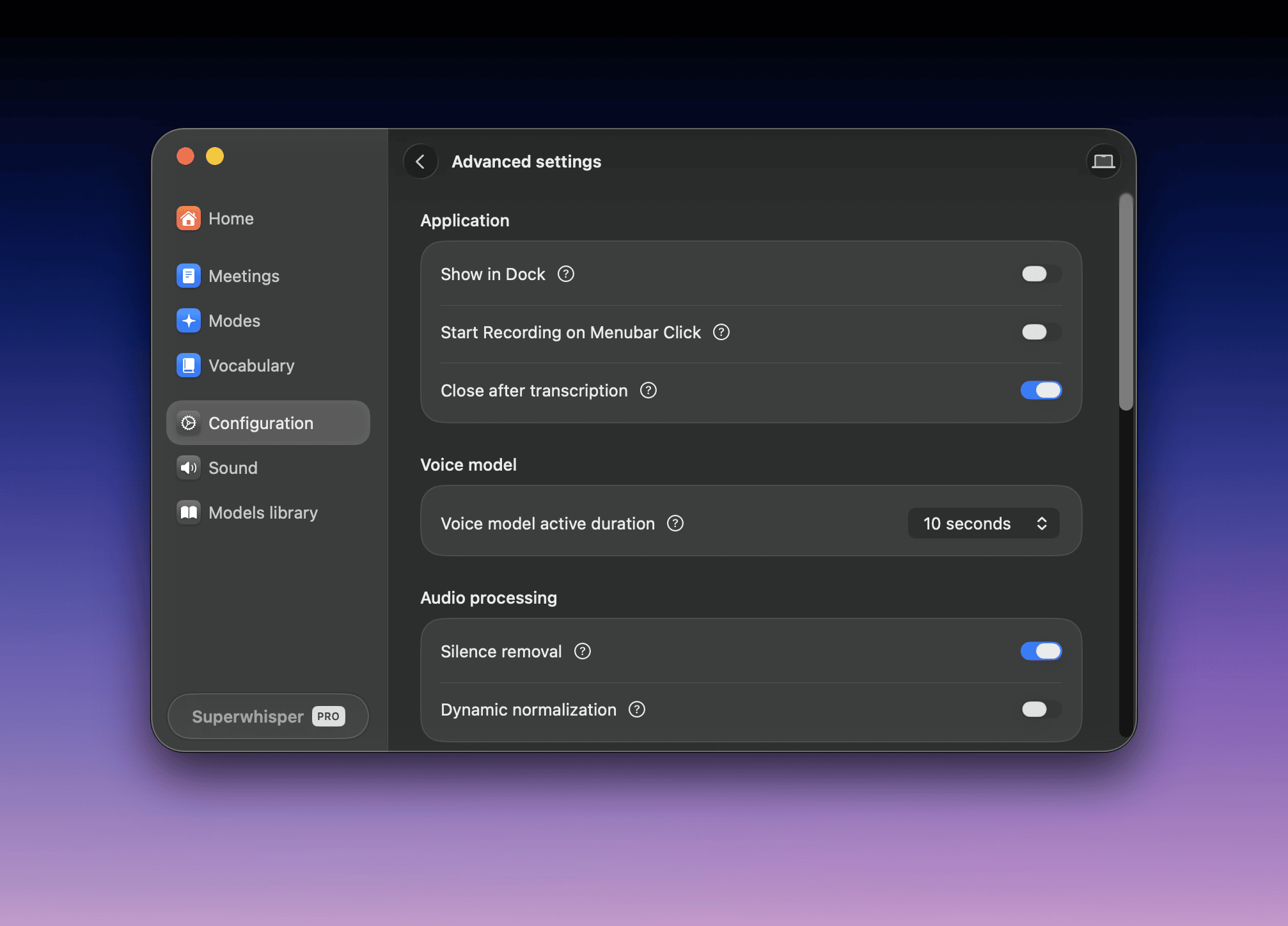
Show in Dock
Controls whether Superwhisper appears in your Dock.Start Recording on Menubar Click
Left-clicking the menu bar icon starts or stops recording. Right-click the icon to open the regular menu.Close after transcription
On (the default): the recording window closes when every dictation completes, even if Superwhisper didn’t detect a paste. Off: the window stays open only when no paste was detected, so you can copy the result. The setting is unavailable when Recording window is set to None in Configuration.Voice model
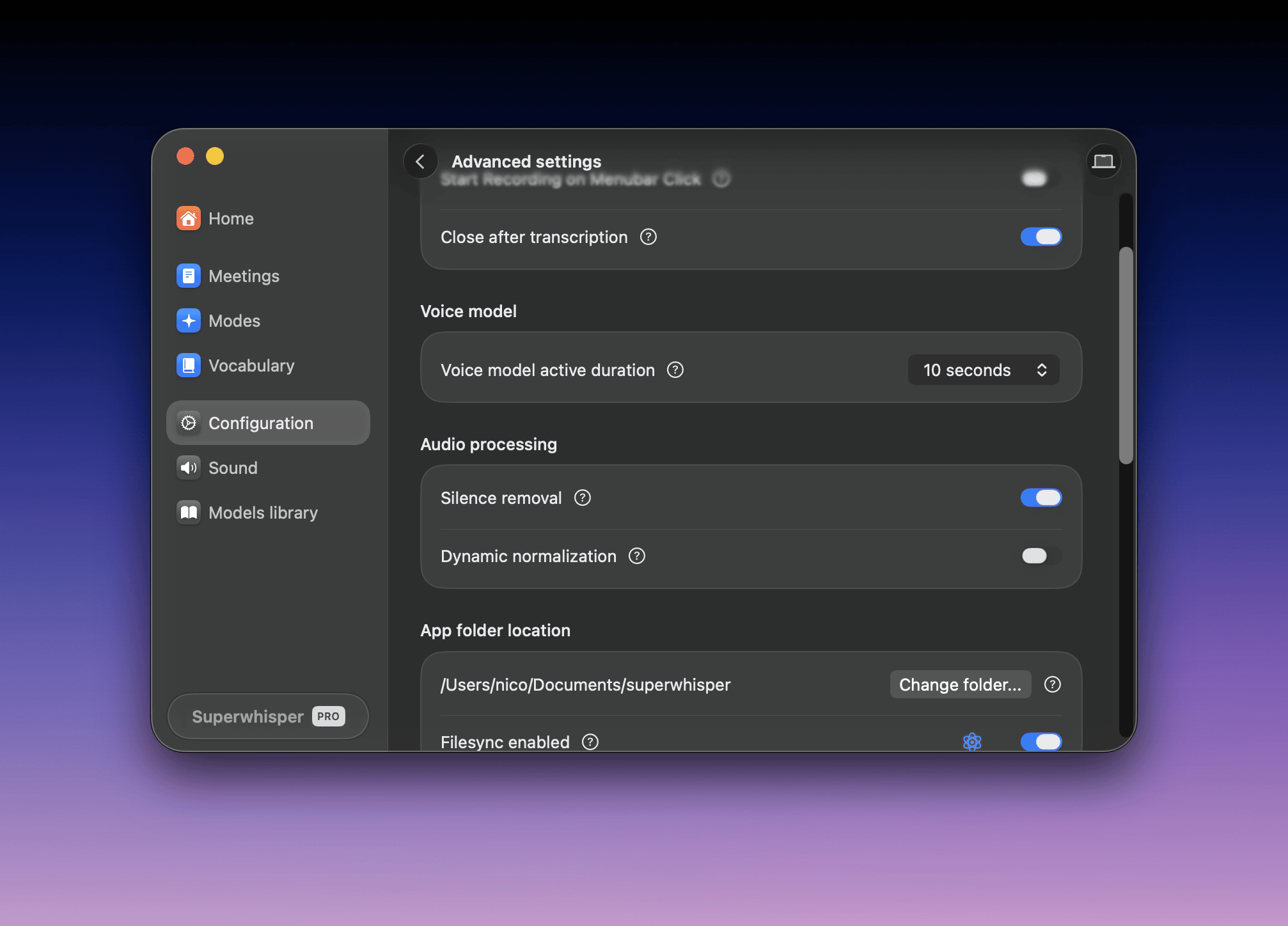
Audio processing
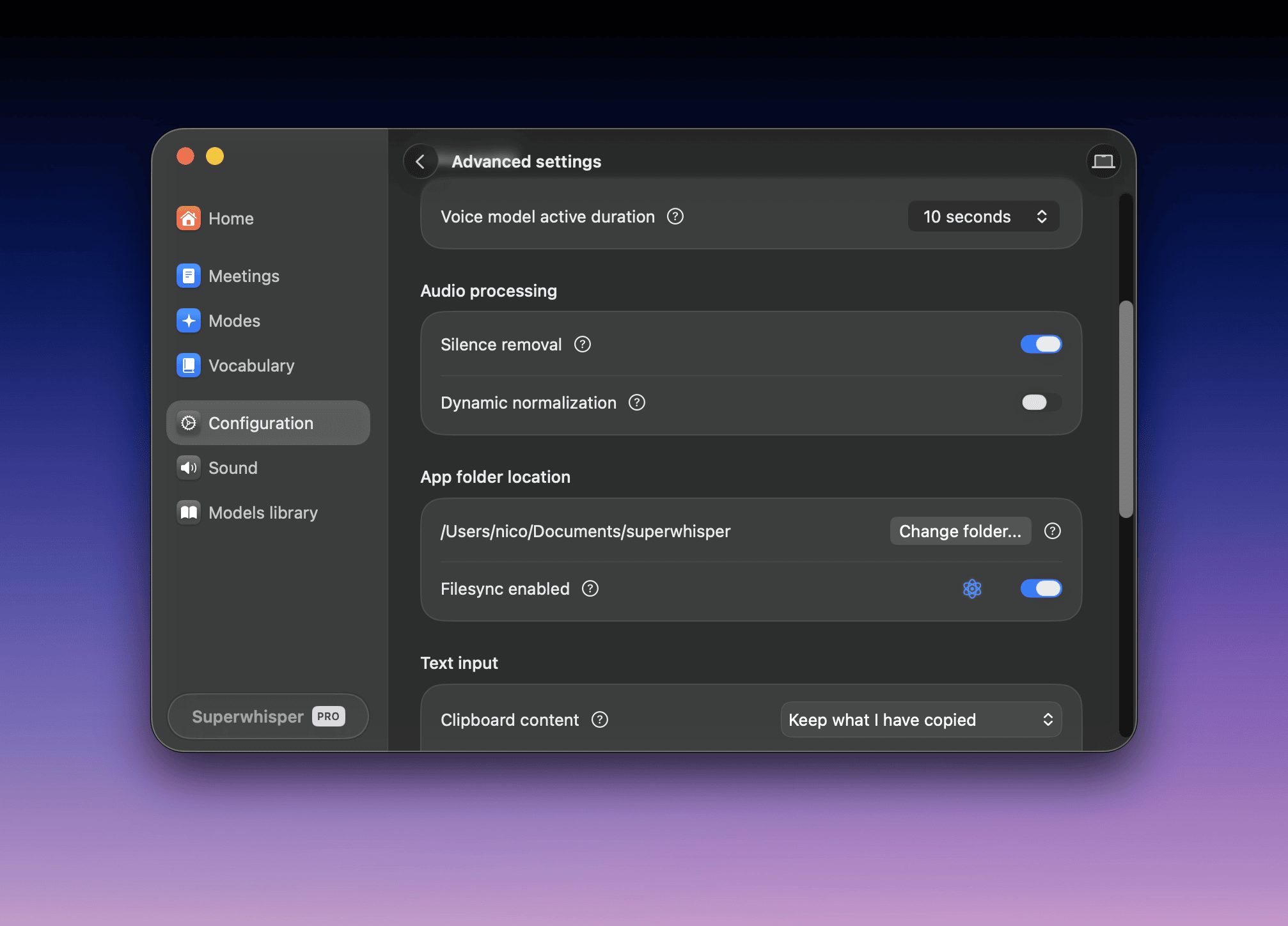
Silence removal
Removes silence from your recordings before processing. This improves accuracy, reduces hallucinations, and speeds up long recordings with many pauses.Dynamic normalization
Adjusts the loudness and filtering of each recording based on its audio, so quiet and loud recordings transcribe equally well.App folder location
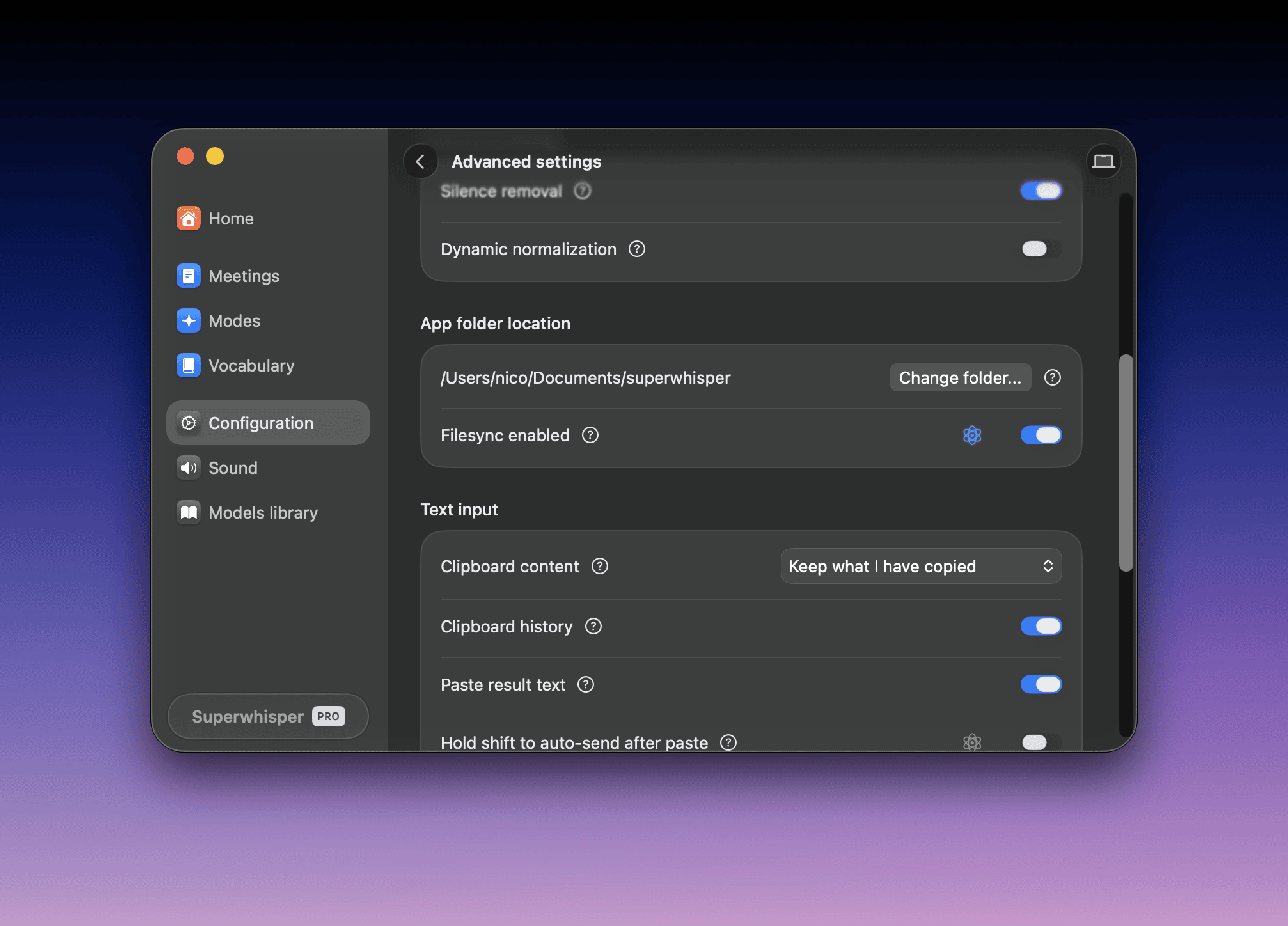
~/superwhisper folder in your home directory by default (older installs may still use ~/Documents/superwhisper). The folder stores your history, custom modes, vocabulary, and text replacements. Back it up to preserve your setup or move it to a new machine. Use Change folder to store it somewhere else.
Superwhisper uses this folder actively during dictation, so keep it locally accessible on your device.
Filesync
Syncs your Superwhisper configuration files across all installations registered under the same license.Text input
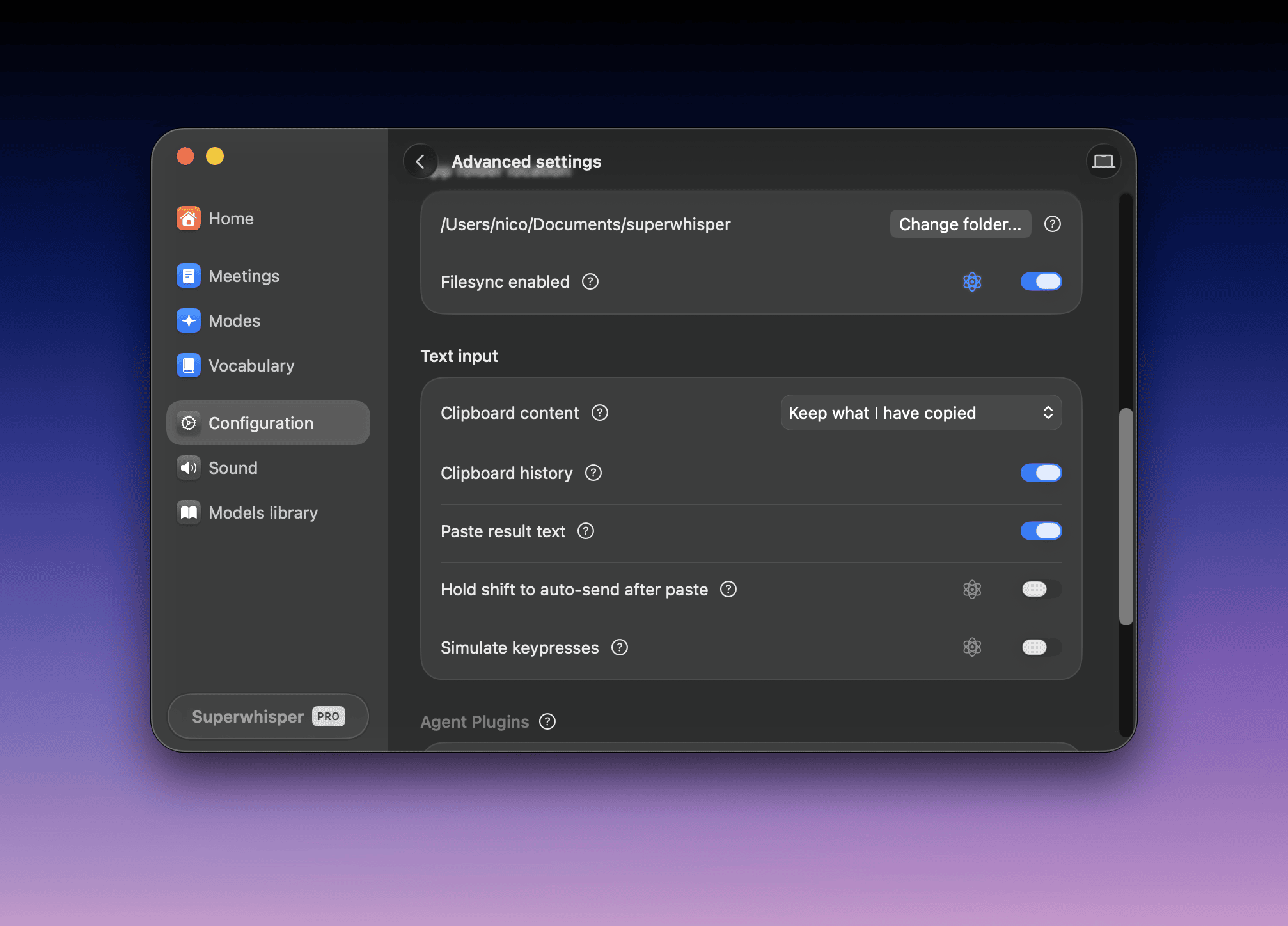
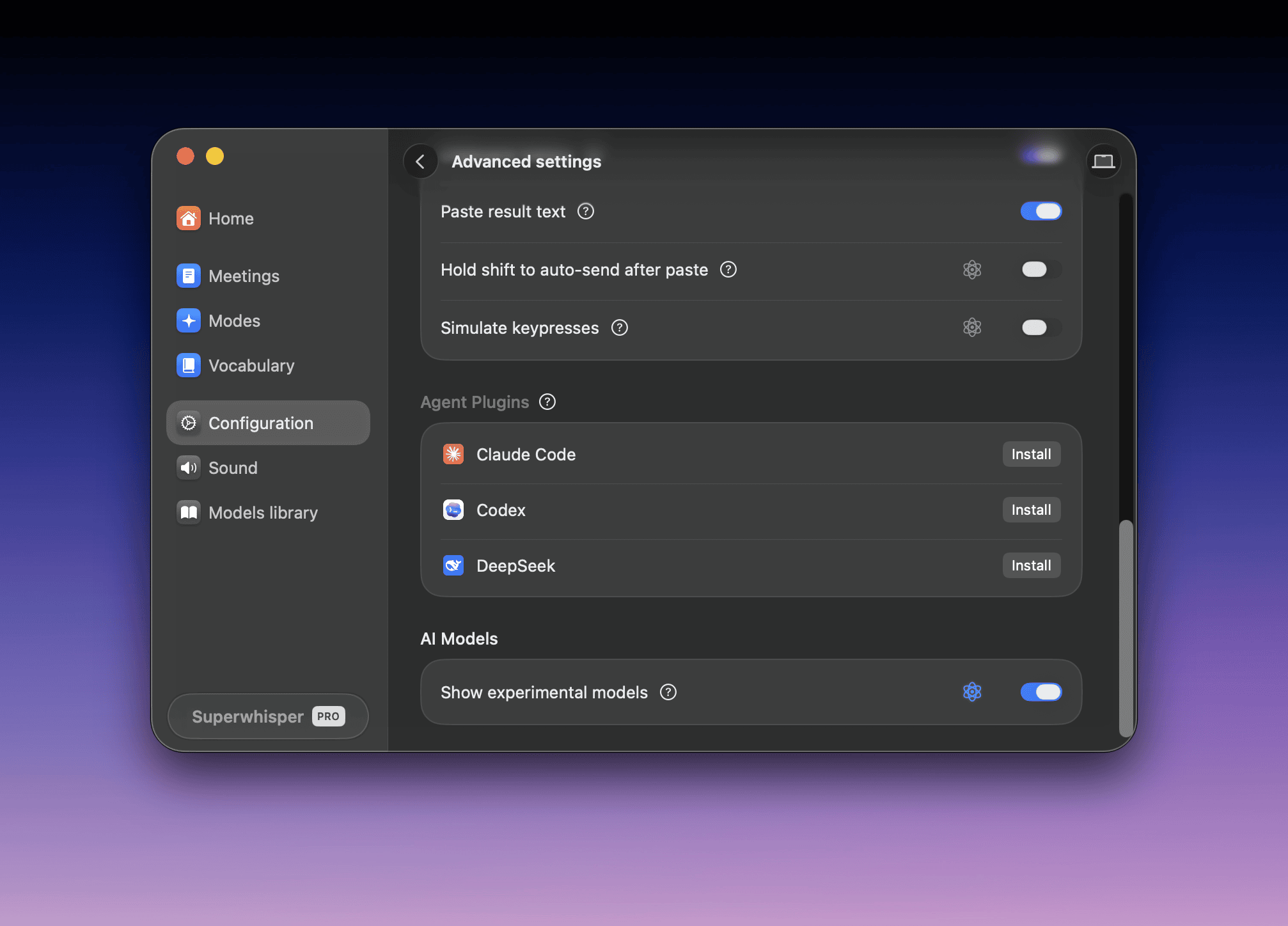
Paste result text
Delivers your result by pasting at the cursor. If you turn it off, Superwhisper still saves results to your clipboard; paste them manually.Hold shift to auto-send after paste
Holding Shift when you finish a dictation simulates pressing Return. Useful for quick messages in chat applications. This option shows only when Paste result text is on.Clipboard content
Sets what is on your clipboard after a dictation pastes:- Keep what I have copied (recommended, the default on new installs): what you had copied goes back on your clipboard once the dictation is pasted
- Replace with dictation: the dictation stays on your clipboard, and what you had copied is gone
Clipboard history
When on, clipboard history apps like Maccy, Paste, or Alfred keep a copy of each dictation.Simulate keypresses
An alternative delivery method for applications that block direct pasting, such as secure fields. Superwhisper types the result as individual keystrokes instead.Agent plugins
Find this under Settings → Configuration → Advanced settings → Agent Plugins. The section shows only when a supported agent is installed on your Mac. Connect Superwhisper to coding agents like Claude Code, Codex, and DeepSeek. See Coding agents.AI models