

Overview
Back up your Superwhisper settings to:- Move to a new computer: transfer your whole setup
- Use several devices: keep the same modes and vocabulary everywhere
- Protect your data: guard against accidental deletion
- Share a setup: give a colleague your dictation configuration
Configuration location
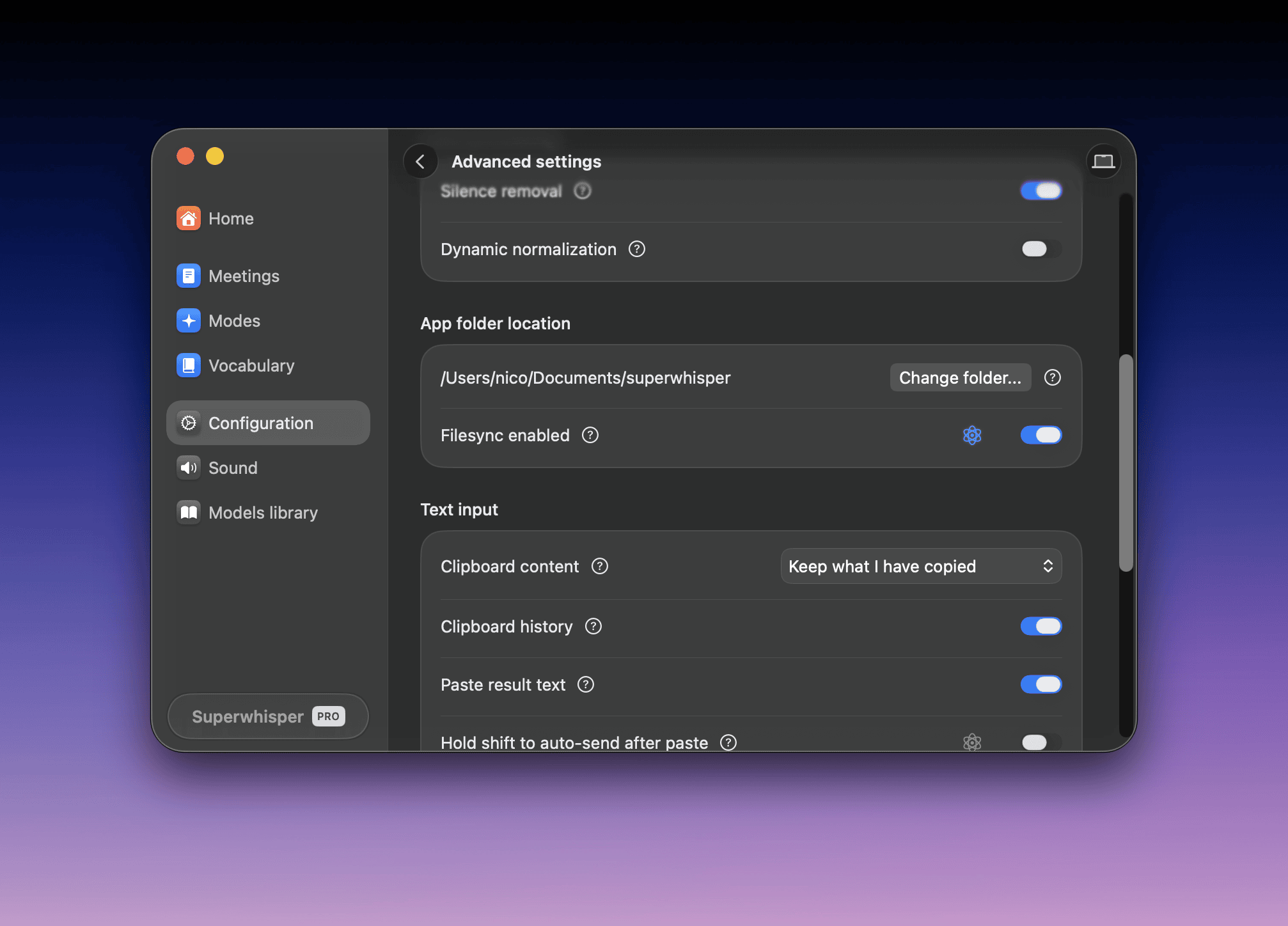
By default, Superwhisper saves all configuration files in the~/superwhisper folder in your home directory. To use a different location, change it in advanced settings.
Installs from before the default changed may still use ~/Documents/superwhisper. You can check your current location in Settings → Configuration → Advanced settings → App folder location.
- models: configuration files of custom models you’ve added
- modes: all modes you’ve created or customized
- settings: vocabulary lists and text replacements
- recordings: your dictation history files
This page describes macOS. On Windows, Superwhisper stores these files in a different folder. See Superwhisper on Windows.
Back up your settings
1
Locate the configuration folder
Open
~/superwhisper, or your custom location if you changed the default.2
Select what to back up
- Copy specific folders (
models,modes,settings) for a targeted backup - Skip the
recordingsfolder if you don’t need dictation history - Copy the entire Superwhisper folder for a complete backup
3
Verify the backup
Check that the copy includes every folder you need.